Credit Applications
The Credit Applications page is the central hub for reviewing and managing every loan application submitted across your businesses. From here, you can track application progress, monitor scores, filter by status, and take action on individual records — all from a single, unified view.
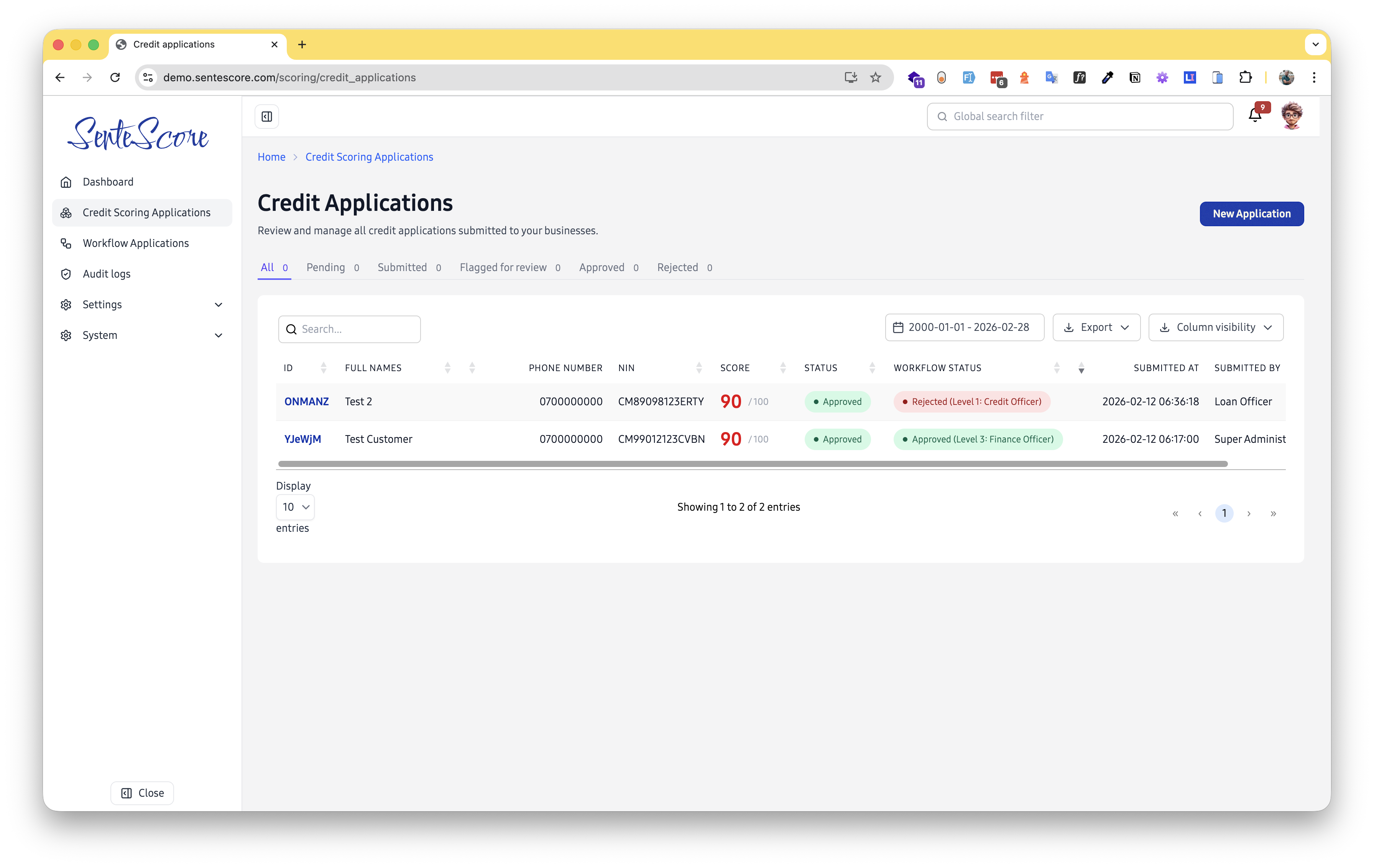
Page Overview
Section titled “Page Overview”When you navigate to Home → Credit Scoring Applications, you are presented with a full table of applications alongside key details: applicant identity, credit score, current status, workflow progress, submission timestamp, and the user who submitted the application.
A New Application button in the top-right corner allows authorised users to manually create and submit a new credit application directly from this page.
Status Tabs
Section titled “Status Tabs”At the top of the application list, a row of tabs lets you instantly filter applications by their current status. Each tab displays a live count of applications in that state.
All is the default view. It shows every application regardless of status — pending, submitted, under review, approved, or rejected. Use this tab to get a complete picture of your entire application pipeline at a glance.
Pending applications have been created but not yet formally submitted for processing. They may be awaiting additional information from the applicant or are still being assembled by a loan officer before submission.
Submitted applications have been formally entered into the scoring and decision workflow. They are actively being processed and are awaiting a scoring result or a reviewer action at one of the workflow levels.
Applications in Review have been escalated for manual human assessment — either automatically by a scoring rule (e.g. a borderline score) or manually by a reviewer. These require a decision before they can proceed to approval or rejection.
Approved applications have met all required scoring and workflow criteria. A positive credit decision has been made and the application has completed its journey through the approval chain.
Rejected applications did not meet the required criteria at one or more stages. The rejection is captured in both the Status and Workflow Status columns, providing a full audit trail of where and why the decision was made.
Filtering & Search Tools
Section titled “Filtering & Search Tools”Search Bar
Section titled “Search Bar”The search bar at the top-left of the table allows you to quickly locate an application by typing a name, phone number, NIN, or application ID.
Date Range Filter
Section titled “Date Range Filter”The date range picker (shown as 2000-01-01 – 2026-02-28 by default) lets you narrow the application list by the Submitted At date. Click the calendar icon to open the picker and choose a custom start and end date.
This is particularly useful when:
- Auditing applications submitted within a specific reporting period
- Reviewing end-of-month or quarterly batches
- Investigating applications submitted on a specific day
Export
Section titled “Export”The Export button allows you to download the current filtered view of applications. This is useful for external reporting, sharing with stakeholders, or importing into other tools. You can export to PDF, CSV, Excel or even copy to the clipboard.
Column Visibility
Section titled “Column Visibility”Use the Column Visibility toggle to show or hide specific table columns. This helps keep the view uncluttered when you only need to focus on certain data points.
Table Columns
Section titled “Table Columns”| Column | Description |
|---|---|
| ID | A unique, short alphanumeric identifier for each application (e.g. ONMANZ). Click it to open the full application detail. |
| Full Names | The full name of the credit applicant. |
| Phone Number | The applicant’s registered phone number. |
| NIN | The applicant’s National Identification Number, used for identity verification. |
| Score | The computed credit score out of 100. Displayed in red to draw immediate attention; higher scores indicate lower credit risk. |
| Status | The overall credit decision status (see Application Statuses below). |
| Workflow Status | The current position of the application within the multi-level approval workflow (see Workflow Statuses below). |
| Submitted At | The exact date and time the application was submitted (format: YYYY-MM-DD HH:MM:SS). |
| Submitted By | The role or user who submitted the application (e.g. Loan Officer, Super Administrator). |
All columns support sorting — click any column header to sort ascending or descending.
Application Statuses
Section titled “Application Statuses”The Status column reflects the overall lifecycle state of the application from submission through to a final credit decision.
| Status | Meaning |
|---|---|
| Pending | The application has been created but not yet formally submitted. It may be awaiting additional information or is still being prepared by the loan officer. |
| Submitted | The application has been formally submitted and is now active in the scoring and decision pipeline. It is awaiting processing or a reviewer action. |
| Review | The application has been flagged — either automatically by a scoring rule or manually by a reviewer — and it goes back to the loan officer to review the flagged items |
| Approved | The application has met all required criteria and has been granted a positive credit decision. |
| Rejected | The application did not meet the required criteria at one or more stages and has been declined. |
The typical flow of a status is:
Pending → Submitted → Approved ↘ Rejected ↘ Flagged for reviewWorkflow Statuses
Section titled “Workflow Statuses”The Workflow Status column reflects the current state of the application within your organisation’s configured multi-level approval chain. This is independent of the application status and tracks the internal review and approval process.
| Workflow Status | Meaning |
|---|---|
| Draft | The workflow record has been initialised but the approval process has not formally started. The application is being prepared for routing. |
| Pending | The application is sitting in an approval queue and is awaiting action from the reviewer at the current level. |
| Approved | The application has been approved at the current or final level of the workflow. If this is the last level, the workflow is complete. |
| Rejected | A reviewer at one of the workflow levels has declined the application. The workflow stops and no further levels are processed. |
| Cancelled | The workflow was manually cancelled before reaching a final decision. This may occur if the applicant withdrew, duplicate submissions were found, or an admin intervened. |
| In Arbitration | The application has been escalated to an arbitration process due to a dispute or disagreement between reviewers at different levels. It is under special review pending resolution. |
How Workflow Levels Work
Section titled “How Workflow Levels Work”Workflows in SenteScore are configured with sequential approval levels. Each level is assigned to a user role. An application moves forward only when approved at the current level:
- Application is submitted and auto-scored.
- Workflow record is created in Draft, then transitions to Pending as it enters the first review queue.
- Routed to Level 1 reviewer (e.g. Credit Officer) for first assessment.
- If approved at Level 1, moves to Level 2 (e.g. Branch Manager) — still Pending at the new level.
- Continues up the chain until the final level is reached and the workflow is marked Approved.
At any point in the chain, a reviewer can Reject the application (ending the workflow), Cancel it (removing it from the process), or escalate it to In Arbitration if there is a dispute that requires a higher authority to resolve.