Credit Application Detail
The Credit Application Detail page gives a full, consolidated view of a single credit application — from the applicant’s identity and financial data through to the computed credit score, a line-by-line score breakdown, supporting documents, comments, and a complete audit timeline.
To access this page, click any application ID or applicant name from the Credit Applications list.
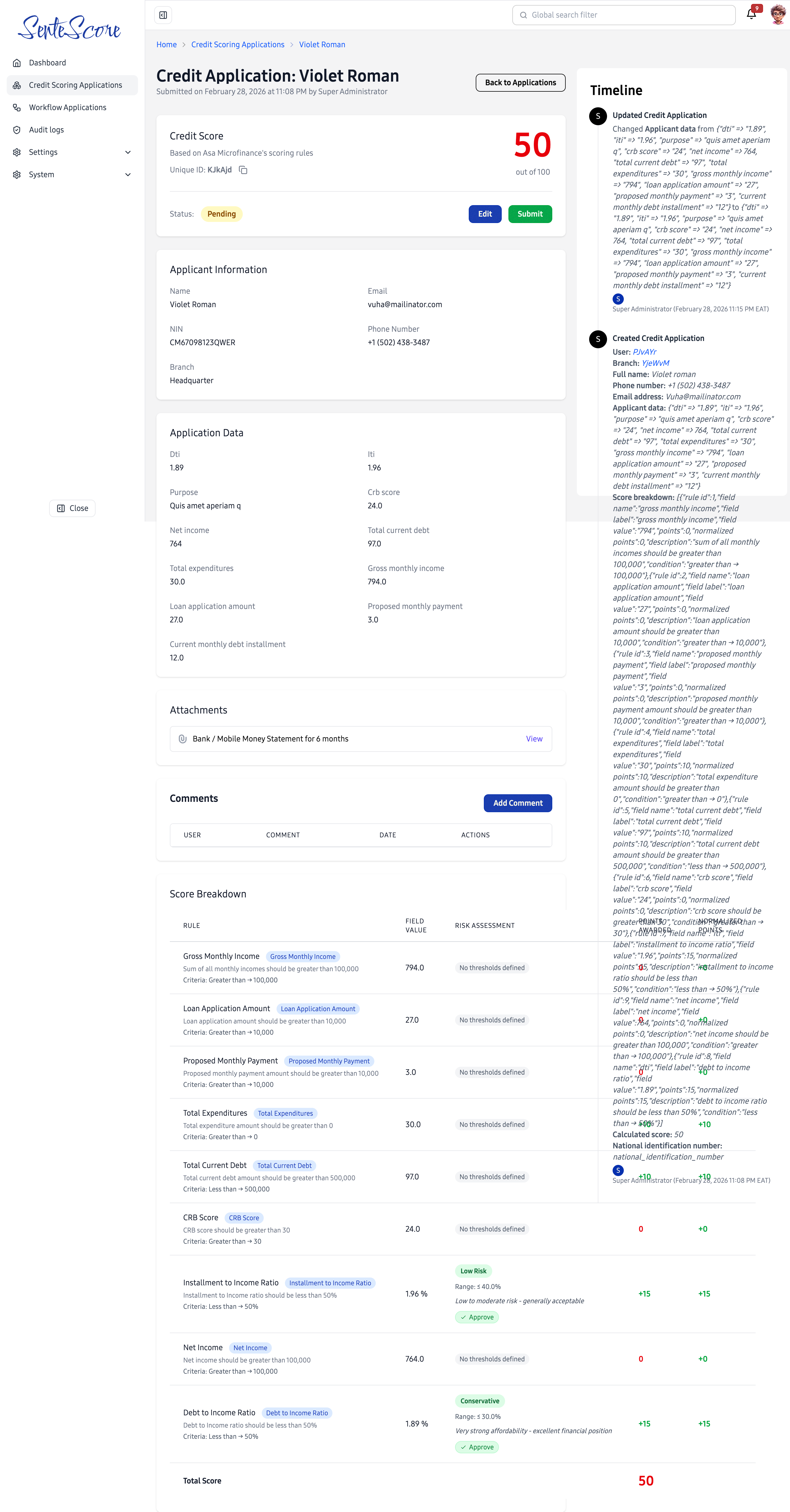
Page Overview
Section titled “Page Overview”The page is organised into the following sections, described below:
- Credit Score card — the headline score, status, and available actions
- Applicant Information — identity details
- Application Data — the financial inputs used for scoring
- Attachments — uploaded supporting documents
- Comments — internal reviewer discussion thread
- Score Breakdown — a rule-by-rule explanation of how the score was computed
- Timeline — a full audit log of every action taken on the application
Credit Score Card
Section titled “Credit Score Card”The score card at the top of the page is the most important summary block. It shows:
| Element | Description |
|---|---|
| Score | The computed credit score displayed prominently in red (e.g. 50 out of 100). |
| Scoring basis | A label indicating which scoring rules were used (e.g. “Based on Asa Microfinance’s scoring rules”). |
| Unique ID | The application’s short alphanumeric identifier with a copy button for easy sharing. |
| Status | The current application status displayed as a colour-coded badge (e.g. Pending). See Application Statuses. |
Actions
Section titled “Actions”Depending on the application’s current status, one or more action buttons are available directly on the score card:
| Button | Description |
|---|---|
| Edit | Opens the Edit Credit Application form to modify and rescore the application. |
| Submit | Formally submits the application into the scoring workflow, transitioning its status from Pending to Submitted. |
| Back to Applications | Returns to the main Credit Applications list without making any changes. |
Applicant Information
Section titled “Applicant Information”A read-only summary of the applicant’s identity details as entered during creation or last edit.
| Field | Description |
|---|---|
| Name | The applicant’s full legal name. |
| The applicant’s email address. | |
| NIN | The applicant’s National Identification Number. |
| Phone Number | The applicant’s contact number. |
| Branch | The branch the application is associated with. |
Application Data
Section titled “Application Data”A read-only display of all the financial fields submitted with the application. These are the values directly used as inputs into the scoring rules. Fields shown here correspond to the dynamically configured parameters set by your administrators.
Examples of fields include DTI (Debt-to-Income ratio), ITI (Installment-to-Income ratio), Purpose, CRB Score, Net Income, Total Current Debt, Total Expenditures, Gross Monthly Income, Loan Application Amount, Proposed Monthly Payment, and Current Monthly Debt Installment.
Attachments
Section titled “Attachments”The Attachments section lists all documents uploaded with the application (e.g. Bank / Mobile Money Statement for 6 months). Each attachment has a View link to open or download the file directly.
Comments
Section titled “Comments”The Comments section is an internal discussion thread for reviewers and loan officers to communicate about the application. It is not visible to the applicant.
The table shows:
| Column | Description |
|---|---|
| User | The name of the user who posted the comment. |
| Comment | The comment content. |
| Date | The timestamp of when the comment was posted. |
| Actions | Options to edit or delete the comment (subject to permissions). |
Click Add Comment to post a new internal note on the application.
Score Breakdown
Section titled “Score Breakdown”The Score Breakdown table is a transparent, rule-by-rule explanation of exactly how the final credit score was computed. Each row represents a single scoring rule evaluated against the application data.
| Column | Description |
|---|---|
| Rule | The name and description of the scoring rule, including the criteria it evaluates (e.g. “Gross monthly income should be greater than 100,000”). A coloured badge links the rule to the application data field it reads from. |
| Field Value | The actual value from the application that was evaluated against this rule. |
| Risk Assessment | A qualitative risk label for rules with defined thresholds (e.g. Low Risk, Conservative), a score range, a description, and an Approve or Reject indicator. Rules without configured thresholds show “No thresholds defined”. |
| Points | The raw points allocated by this rule based on the field value. |
| Normalized Points | The points after normalization, representing the rule’s weighted contribution to the final score. |
The final row shows the Total Score — the sum of all normalized points across every rule, which is the credit score displayed on the score card.
Understanding Risk Assessments
Section titled “Understanding Risk Assessments”Some scoring rules have risk bands defined by administrators. When a field value falls within a band, the breakdown shows:
- A risk label (e.g.
Low Risk,Conservative) - The score range for that band (e.g.
Range: ≤ 40.0%) - A description explaining what the band means (e.g. “Low to moderate risk — generally acceptable”)
- An Approve or Reject recommendation for that band
Rules without defined thresholds contribute 0 normalized points and show “No thresholds defined”.
Timeline
Section titled “Timeline”The Timeline panel on the right side of the page is a complete, immutable audit log of every action taken on the application, in reverse chronological order (newest first).
Each timeline entry records:
- The type of event (e.g. Updated Credit Application, Created Credit Application)
- The full details of what changed — for updates, this includes a before/after diff of every field that was modified
- The score breakdown snapshot at the time of creation, including every rule, field value, points, and the calculated score
- The user who performed the action
- The exact timestamp of the action (e.g.
February 28, 2026 11:15 PM EAT)